
MultiMon
One seamless video wall across every monitor you own
Turns any set of monitors into one seamless video wall, with every source and every audio track clocked to a single master timeline.
For VJs and live visual artists, AV technicians and event producers, theatres and installation artists, and design and media students.
- Version 1.0.0
- Windows 10 (1809+) and 11
- macOS 14+ on Apple Silicon
Scroll to see what it does
Four modes
Pick a mode, then go fullscreen
Load your media onto monitor slots, pick a mode, then go fullscreen across every screen you have chosen.
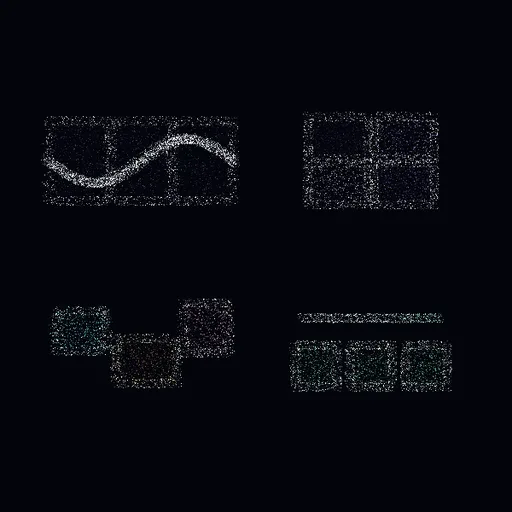
- Span One source sampled across every display MultiMon detects, as a single continuous canvas.
- Split One source cut into a rows-by-columns grid, 2×2 by default, with each output mapped to a grid cell. A monitor left with no cell stays black.
- Individual One source per monitor. Free-running by default; tick Sync to put every source on the one shared clock.
- Hap One HAP clip per monitor, all of them on the one shared clock.
Sync
One master clock drives every screen
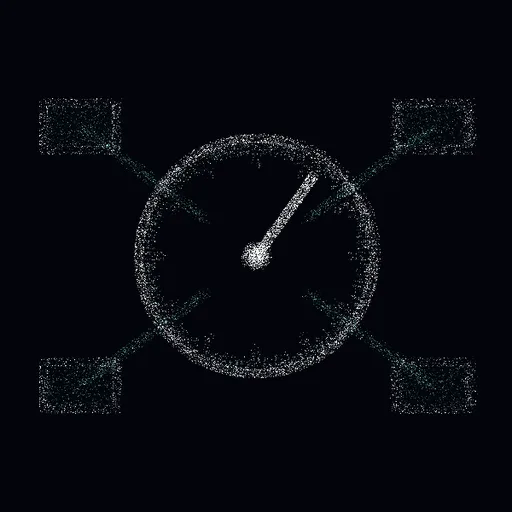
There is one master clock. Every source shows the nearest frame at or before master time, dropping or repeating a frame as needed.
Span and Split are inherently in sync because they are one source, and Hap mode is always on the shared clock.
- Individual mode has a checkbox labelled Sync (frame-lock same-length clips). The name is the condition: frame-locking only holds for clips of equal duration.
- No speed adjustment and no seek correction.
- Audio On Windows, output is clocked to the same master timeline that drives the video.
Choose Hap when every clip is a HAP file and the wall has to stay tight. Choose Individual with Sync for H.264, HEVC or a mix of formats.

Audio
A mixer for the whole show
The mixer is inline in the main window. There is no separate routing dialog.
- Every track has its own volume, pan, mute and solo, and a remove button on tracks you added yourself.
- MASTER A master fader and a Mute box sit above the track list.
- Add audio Takes standalone stems: mp3, wav, flac, aac, m4a, and the audio of an mp4 or mov.
- One audio device One AUDIO DEVICE dropdown covers the whole show. Every track goes to that one device; there is no per-track output device.
- Device pulled mid-show MultiMon rebuilds the WASAPI endpoint and retries. After three failed attempts that output stops for the rest of the show; the application and the video carry on.
Codecs and decode
HAP written from scratch, hardware decode for the rest
No third-party HAP library is involved.
- HAP and HAP Q Written from scratch. Each HAP variant maps to its own block-compressed texture format.
- If the GPU does not support a clip’s texture format MultiMon hands the file to Media Foundation. If that cannot open it either, that output stays black and the failure is logged; nothing crashes.
- H.264 and HEVC On Windows these decode through Media Foundation, with hardware decode and an automatic fallback to software decode when a hardware decoder is unavailable.
- Containers mp4, mov, mkv and avi.
- Convert to HAP Transcodes mp4, mov, mkv, avi or wmv into HAP in a mov container. It calls FFmpeg, which must be on your PATH; FFmpeg is not bundled, and no playback feature needs it.
In use
The keys, the files and the plain facts
Perform mode
MultiMon is a single main window. PERFORM and Stop sit in the transport row.
- F11 Toggle perform mode
- Space Pause or resume while performing
- Esc Exit perform mode
Identify screens
Puts a numbered overlay on every display, so you can confirm the assignment before you perform.
Video wall setupProjects
Project files (.mmproj) are JSON, schema version 2, and version 1 files are migrated automatically on open. If the graphics device is lost, MultiMon rebuilds it and resumes from the master clock.
What you can configureRelease status
MultiMon 1.0.0 was released on 18 October 2026 for Windows and macOS (Apple Silicon). The Windows build has been run and passed on a two-GPU development box, an NVIDIA RTX 3080 alongside an AMD integrated GPU, across the full harness matrix plus a manual application run. The unit suites pass at 126/126 and 37/37, and the stress harness has been run with up to four simultaneous outputs. The macOS build was tested on two displays, but not yet on a larger multi-screen rig, with audio device switching or unplugging, or on an Intel Mac. Still outstanding on Windows: the real Intel (QuickSync) acceptance pass, and a multi-vendor rig of four or more screens with a live audio device-pull.
Full changelogKnown limitations
The Windows build is unsigned, so SmartScreen will warn on first run: choose More info, then Run anyway. FFmpeg is resolved from your PATH, so install it only from a source you trust. Only open .mmproj files you created. Per-link mixer overrides are not saved into the project file yet.
Download MultiMon
Version 1.0.0 is out for Windows and macOS (Apple Silicon).
- Windows Windows 10 version 1809 or later, or Windows 11, 64-bit. A self-contained zip of about 115 MB; .NET 9 is bundled, so there is no runtime to install.
- macOS macOS 14 or later on Apple Silicon, as a DMG of about 110 MB, labelled MultiMon 1.0.0. A native port with a Metal render core, HAP and VideoToolbox decode and CoreAudio output. Signed with a Developer ID but not notarized: on first launch, right-click the app and choose Open. Intel Macs are planned for 1.1.
- GPU On Windows, a Direct3D 11 Feature Level 11.0 GPU or better; a GPU that does not expose it fails at startup with a logged error. On macOS, the Apple Silicon GPU through Metal.
- Outputs At least one monitor. No hard upper limit, and MultiMon has been tested with up to four simultaneous outputs.
- Optional FFmpeg on your PATH, only if you want Convert to HAP.
Full details on MultiMon
MultiMon takes any set of monitors and turns them into one seamless video wall. Load your media onto monitor slots, pick a mode, then go fullscreen across every screen you have chosen. It is free and open source under EUPL-1.2, and version 1.0.0 is out for Windows and macOS (Apple Silicon).
Release status
MultiMon 1.0.0 was released on 18 October 2026, for Windows (x64) and for macOS on Apple Silicon. Both builds ship from the same release.
The Windows build has been run and passed on a two-GPU development box — an NVIDIA RTX 3080 alongside an AMD integrated GPU — across the full harness matrix (Span, Individual, Hap and Split, audio, software decode, injected device loss, pause and fullscreen), plus a manual application run. The unit suites pass at 126/126 and 37/37 with a zero-warning build. The stress harness has been run with up to four simultaneous outputs.
Not verified on macOS: the macOS build was tested on two displays, but not yet on a larger multi-screen rig, with audio device switching or unplugging, or on an Intel Mac.
Still outstanding on Windows: the real Intel (QuickSync) acceptance pass, and a multi-vendor rig of four or more screens with a live audio device-pull. Both need hardware that is not on the development box; neither has been run on real silicon yet. The Windows build is unsigned, so SmartScreen warns on first run, and the macOS build is signed with a Developer ID but not notarized.
Two platforms, one wall
 MultiMon 1.0.0
 Windows
 10 version 1809 or later, or Windows 11, 64-bit. Ships in 1.0.0 as a self-contained zip — .NET 9 is bundled, so there is no runtime to install.
 MultiMon 1.0.0
 macOS
macOS 14 or later on Apple Silicon. A native port — Metal render core, HAP and VideoToolbox decode, CoreAudio output — ships in 1.0.0 as a DMG. Signed with a Developer ID but not notarized: on first launch, right-click the app and choose Open. Intel Macs are planned for 1.1.
Four modes
The mode dropdown has four entries:
- Span — one source sampled across every display MultiMon detects, as a single continuous canvas. There is no monitor picker: the control machine’s own screen is one of the outputs, and each screen gets an equal share of the picture per screen, not per pixel, so a wall of mixed resolutions will not line up geometrically.
- Individual — one source per monitor. Free-running by default; tick Sync to put every source on the one shared clock.
- Hap — one HAP clip per monitor, all of them on the one shared clock. HAP’s compressed-texture decode is fast and even enough to hold several streams tightly frame-synced, which is why this is its own mode rather than a flag on Individual.
- Split — one source cut into a rows-by-columns grid, 2×2 by default, with each output mapped to
a grid cell by
row,col. A monitor left with no cell in the grid stays black.
Hap or Individual + Sync? Choose Individual + Sync when your clips are H.264 or HEVC, or a mix
of formats. Choose Hap when every clip is a HAP file and the wall has to stay tight — Individual
takes the Media Foundation path even for a .mov that holds HAP, so it never gets HAP’s frame-accurate
decode. Either way, frame-locking needs clips of equal duration.
Codecs and decode
- HAP and HAP Q, written from scratch. Each HAP variant maps to its own block-compressed texture format: plain HAP is RGB DXT1 (BC1); HAP Alpha is RGBA DXT5 (BC3); HAP Q is scaled YCoCg DXT5 — also BC3 — decoded to RGB by a YCoCg pixel shader; the RGBA BPTC variant is BC7; and the alpha plane of HAP Q Alpha is A RGTC1 (BC4). No third-party HAP library is involved.
- If the GPU does not support a clip’s texture format, MultiMon hands the file to Media Foundation instead. If Media Foundation cannot open it either, that output stays black and the failure is logged — nothing crashes.
- H.264 and HEVC. On Windows these decode through Media Foundation, using hardware decode with an automatic fallback to software decode when a hardware decoder is unavailable.
- Containers accepted:
mp4,mov,mkv,avi.
Audio mixer
Each track has its own volume, pan, mute and solo, and a remove button on tracks you added
yourself. Above the track list sit a MASTER fader and a Mute box, and an Add audio… button
for standalone stems (mp3, wav, flac, aac, m4a, and the audio of an mp4 or mov).
There is one AUDIO DEVICE dropdown for the whole show, next to the mode dropdown. Every track is sent to that one device — there is no per-track output device. The mixer is inline in the main window; there is no separate routing dialog. On Windows, output runs through WASAPI in shared mode, clocked to the same master timeline that drives the video.
If the audio device is removed mid-show, MultiMon rebuilds the WASAPI endpoint and retries. After three failed attempts that output stops for the rest of the show — the audio ends, and the application and the video carry on.
Sync
There is one master clock. Every source shows the nearest frame at or before master time, dropping or repeating a frame as needed. There is no speed adjustment and no seek correction. Span and Split are inherently in sync because they are one source, and Hap mode is always on the shared clock. Individual mode has a checkbox labelled Sync (frame-lock same-length clips) — the name is the condition: frame-locking only holds for clips of equal duration.
The window and the keys
This section describes the Windows control panel and its keys. MultiMon is a single main window. Along the top sit the mode dropdown, the show-wide AUDIO DEVICE dropdown, the Sync (frame-lock same-length clips) checkbox in Individual mode, and Identify screens, which puts a numbered overlay on every display so you can confirm the assignment before you perform.
Below that are the monitor slots (or the single source field in Span and Split), and in Split mode an Auto (by screens) tickbox with rows and columns fields. Leave Auto ticked and MultiMon derives a near-square grid from the number of screens — four screens give 2×2, six give 2×3 — or untick it and set the grid yourself.
The audio mixer is inline on the right. The transport row carries PERFORM and Stop, then the project buttons New, Open project, Save project and Convert to HAP.
| Key (Windows) | What it does |
|---|---|
F11 | Toggle perform mode |
Space | Pause / resume while performing |
Esc | Exit perform mode |
Projects and tools
.mmprojproject files — JSON, schema version 2. Version 1 files are migrated automatically on open.- Convert to HAP — transcodes a source to HAP into a
movcontainer, takingmp4,mov,mkv,aviorwmvas input. It calls FFmpeg, which must be on yourPATH; FFmpeg is not bundled, and no playback feature needs it. - Device-removed recovery — if the graphics device is lost, MultiMon rebuilds it and resumes from the master clock.
Known limitations
Stated plainly, because a live tool is worth less than nothing if it surprises you:
- FFmpeg is resolved from your
PATH. Install it only from a source you trust. - Only open
.mmprojfiles you created. Media paths inside a project file are used as written. - Per-link mixer overrides are not saved into the project file yet.
- The Windows build is unsigned, so SmartScreen will warn on first run — choose More info, then Run anyway. Code signing is planned.
System requirements
| Requirement | Detail |
|---|---|
| Windows | Windows 10 version 1809 or later, or Windows 11 (64-bit). Self-contained — .NET 9 is bundled |
| macOS | macOS 14 (Sonoma) or later on Apple Silicon. Intel Macs are planned for 1.1 |
| GPU | Windows: a Direct3D 11 Feature Level 11.0 GPU or better — a GPU that does not expose Feature Level 11.0 fails at startup with a logged error. macOS: the Apple Silicon GPU, through Metal |
| Outputs | At least one monitor. No hard upper limit, and MultiMon has been tested with up to four simultaneous outputs. On Windows, monitors on different GPU adapters and with mismatched refresh rates are supported |
| Network and audio | No network connection needed. Audio is optional: MultiMon runs without an audio device |
| Optional | FFmpeg on your PATH, only if you want Convert to HAP |
Documentation
- Getting started — download MultiMon and get your first clip on screen
- Standard playback — H.264 and HEVC, containers and decode fallback
- Video wall setup — Split and Span across several screens
- Video synchronisation — the master clock and the Sync checkbox
- HAP codec — HAP and HAP Q playback, and converting your media
- Audio mixer — volume, pan, mute, solo and output devices
- What you can configure — every setting MultiMon actually has
Download MultiMon 1.0.0 for Windows → (x64, self-contained zip, ~115 MB)
Download MultiMon 1.0.0 for macOS → (Apple Silicon DMG, ~110 MB — right-click → Open on first launch)
Full changelog → · Releases on GitHub →
Licence
MultiMon is free and open source under the European Union Public Licence v1.2 (EUPL-1.2), with the full source and history on GitHub.