
Mind Map Deep Dive
Plan and revise with an outline that is also a map - templates, the File menu, read aloud, study mode, and the full keyboard reference.
Overview
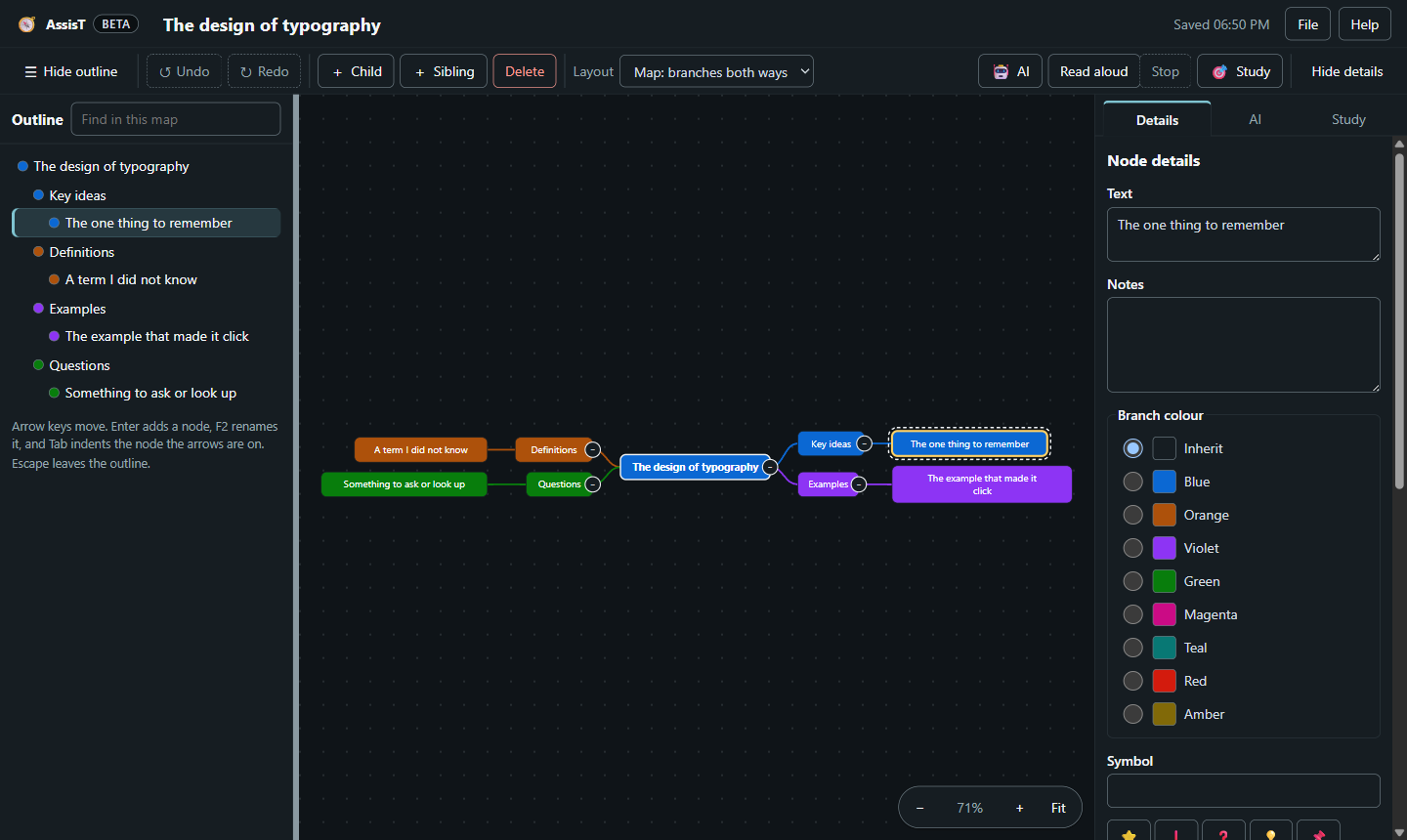
Mind Map is an outline-first way to plan an essay or revise a topic. You type an outline, and the same outline is drawn as a branching map on a canvas beside it. Both panes edit one model, so a change in either shows up in the other straight away.
Who benefits most: Anyone who plans by talking themselves through a structure rather than writing a linear draft, anyone who revises better from a picture than from notes, and anyone who cannot use a drag-and-drop diagram tool with a mouse.
Beta. Mind Map is marked beta in the popup and in the editor. Everything described here works and your maps are saved, but parts of it will still change. You can always take a map out of the extension as Markdown, OPML, JSON or a FreeMind file.
Opening it
Three ways in:
- Popup → Study → Mind Map → Open Mind Maps opens the library in its own tab
Alt+Shift+Mdoes the same from any page- Popup → Study → Mind Map → Map this page turns the current page’s headings into a map, without using AI
Select text on any page and choose Add to mind map in the highlight menu to send that phrase into a map. Which map it lands in is set by Highlights go to in the Mind Map controls; the default is an inbox map that is created for you.
Templates
New map offers six starting points:
| Template | What it gives you |
|---|---|
| Blank map | One node to start from, and nothing else in the way |
| Essay plan | An argument’s structure, ready to fill in |
| Lecture notes | Key ideas, definitions, examples and the questions to ask afterwards |
| Compare and contrast | Two subjects side by side, what they share, where they differ and what follows |
| Project plan | Goals, the tasks under them, the deadlines they meet and the risks to watch |
| Reading notes | The claims a text makes, its evidence, your own response and the words to look up |
Your maps live in a library with search, rename, delete and import.
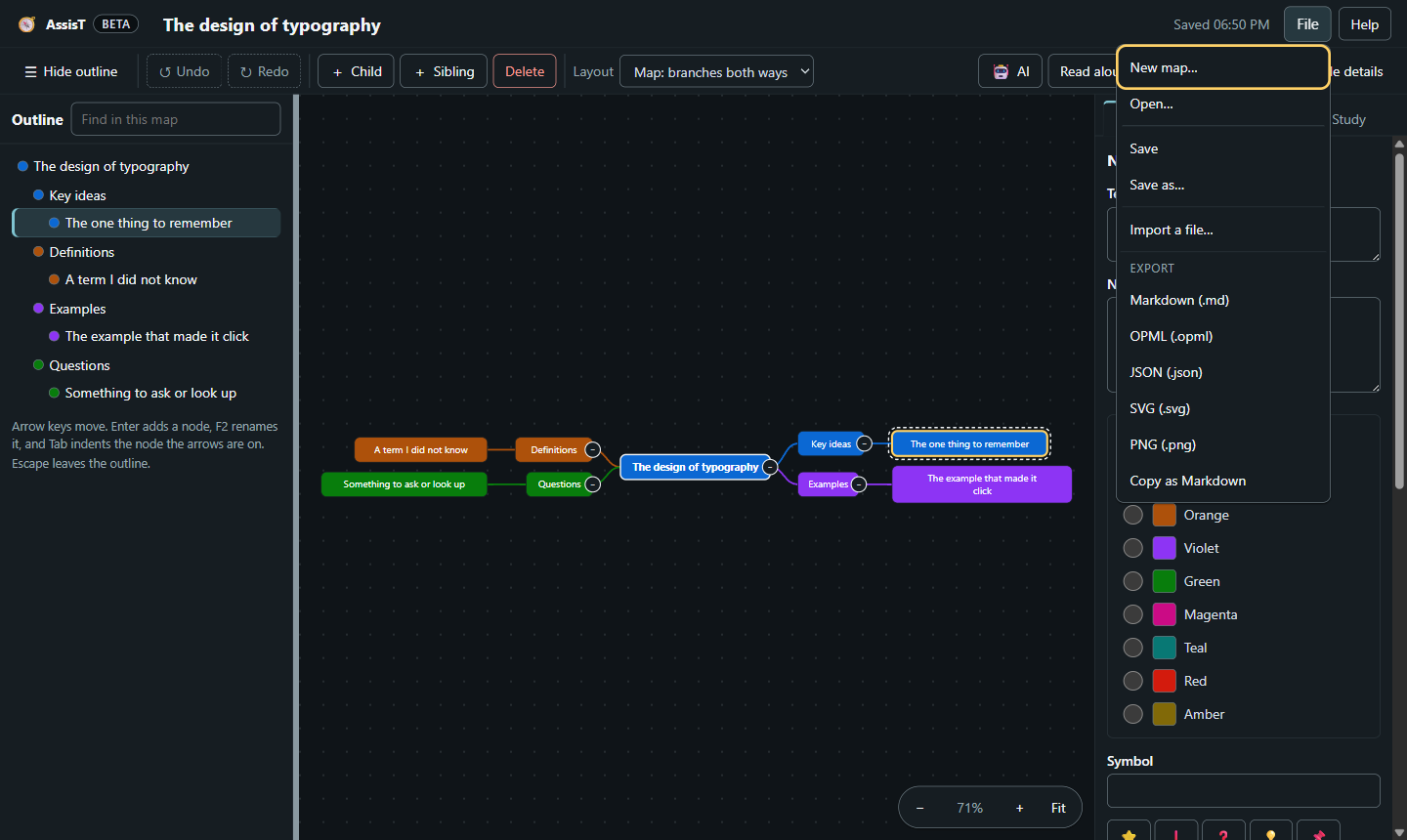
The File menu
| Item | What it does |
|---|---|
| New map… | Start a map from a template |
| Open… | Switch to another map in your library |
| Save | Write this map now (it also autosaves) |
| Save as… | Write a copy under a new name |
| Import a file… | Open a Markdown, OPML, JSON, FreeMind (.mm), XMind (.xmind) or plain indented outline (.txt) file as a new map |
| Export → Markdown (.md) | The outline as an indented Markdown list |
| Export → OPML (.opml) | For other outliners and mind-map tools |
| Export → FreeMind (.mm) | Opens in XMind, Coggle, MindMeister, Freeplane and FreeMind |
| Export → JSON (.json) | The full map, including notes and links |
| Export → SVG (.svg) | The canvas as vector artwork |
| Export → PNG (.png) | The canvas as an image |
| Export → Copy as Markdown | The outline straight onto the clipboard |
Markdown, OPML and JSON round-trip losslessly: export a map, import it again, and you get the same map back.
Maps from other tools
You can open a map made in XMind, Coggle, MindMeister, Freeplane or FreeMind, or a plain indented outline saved as text. Colour, symbols, ticks, notes, links and cross-links come with it. The file is read on your own computer and nothing is uploaded. A file you open always becomes a new map, so it can never write over one you already have.
While a file is being read, AssisT names it; once the map is on screen, one sentence says what came in. For an XMind file with several sheets, it says which sheet was opened and that the others were not imported. Import works the same way from the library and from the File menu.
Arranging the map
- Drag a node onto another to put it inside, or onto the top or bottom edge of another to drop it above or below. A line shows where it will land, and
Escapecancels part way through - Move to… in the Details panel (
Alt+M) moves a node without dragging: search for where it should go, say whether it goes first, last or beside a branch you name, and press Move - The node selected on the canvas carries two small buttons for adding a child or the next node along, so you can keep building without leaving the picture. Everything they do is also on the keyboard
Working on several nodes at once
Hold Shift and press the arrow keys to take in the nodes either side of the one you are on, press Ctrl+Space to add or drop the node you are on, or press Ctrl+A for the node and its siblings, and again for the whole outline. On a row or on the canvas, Ctrl+click picks out as many nodes as you like.
Then move them together with one Tab, one Alt+Up, one drag or one Move to…, or tick, colour, fold, give a symbol to or delete them in one go. One Ctrl+Z puts any of it back. The Details panel says “Mixed” where the nodes you picked do not agree.
Focus on one branch
Choose a node and press Alt+Shift+F, the Focus button, or Focus on this branch in the Details panel. The outline and the canvas then show just that branch. A trail above the map says where the branch sits and takes you back up it, and Escape brings the whole map back. Search, read aloud and study mode keep to the branch while it is focused.
Focus is only a view: editing, undo and saving work exactly as they do on the whole map, and if a change lands somewhere you cannot see, AssisT tells you.
Read aloud and study mode
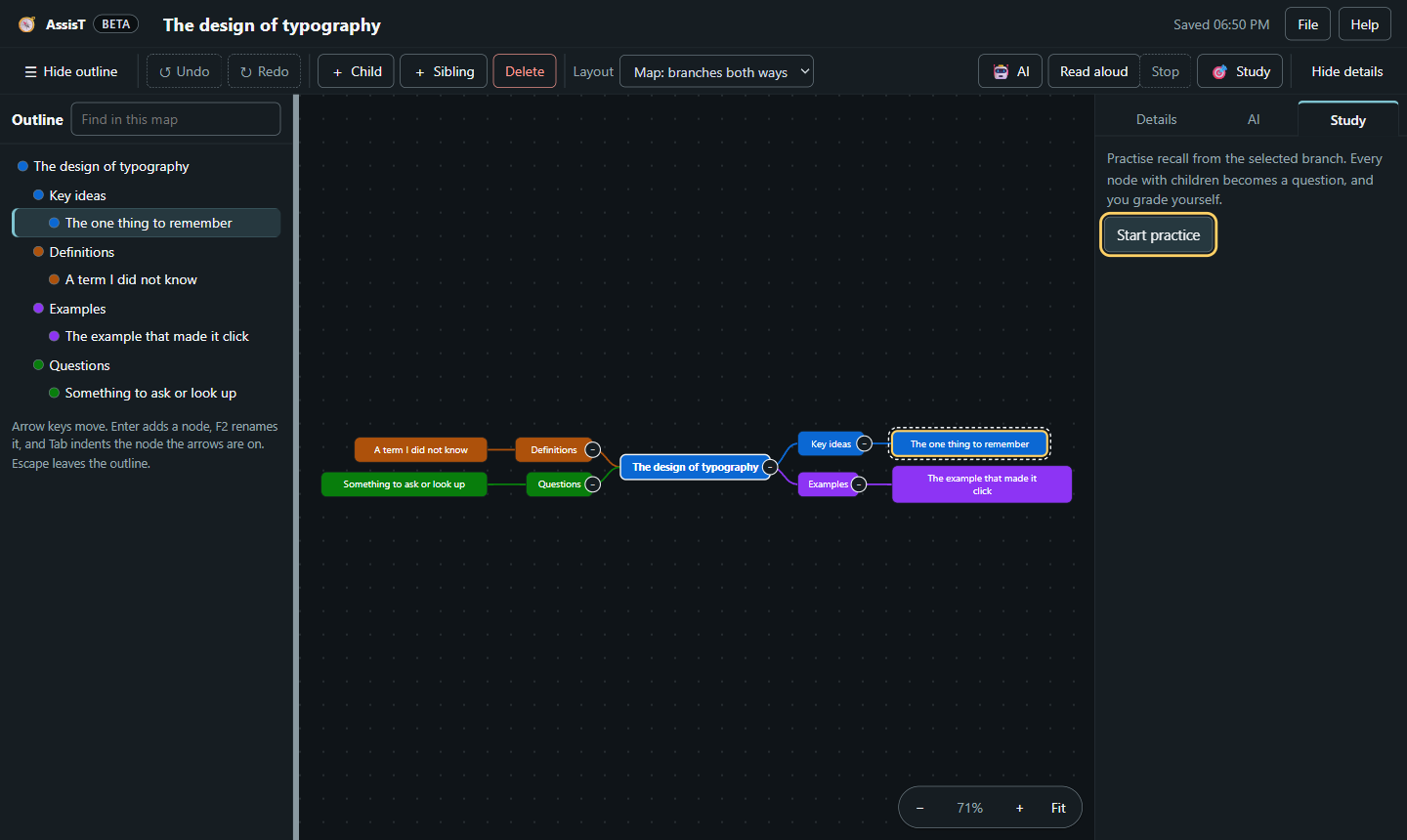
Read aloud (Alt+R) speaks a branch using the voice, rate and pitch you already set for text-to-speech, and highlights the node being read as it goes.
Study mode hides a node’s children and asks you to recall them. You grade yourself, and each miss offers a Make a flashcard button, so you decide which of them are worth revising later. Nothing is added to your deck unless you ask for it.
Nodes can also carry a note, a link to a source in your citation library, and the URL and quote a captured highlight came from.
AI help, and working without it
Mind Map is usable with AI switched off, and that is not a reduced mode. Making, editing, arranging, saving, importing, exporting, reading aloud and study mode never call a model. Map this page builds a map from the page’s own heading structure, not from a model.
With an AI provider set up, an AI panel adds four things:
- Build a map from the current page, or from text you paste in
- Suggest sub-points under a node you select
- Explain a node, and put the explanation in its notes
- Turn a branch into recall questions
Each of those is a suggestion you accept or discard. Nothing is written into your map without you agreeing to it.
Keyboard reference
Everything in the editor can be done from the keyboard. Press ? or Ctrl+/ in the editor for this list in place.
The whole page
| Key | What it does |
|---|---|
Ctrl+Z | Undo the last change |
Ctrl+Y or Ctrl+Shift+Z | Redo |
Ctrl+S | Save now |
Ctrl+Shift+S | Save a copy of this map under a new name |
Ctrl+O | Open another map |
Ctrl+F | Search this map |
Enter in the search box | Go to the next match |
Shift+Enter in the search box | Go to the previous match |
Alt+R | Read the map aloud, and pause or carry on |
Alt+Shift+F | Show just the branch you are on, and Escape to see the whole map again |
Alt+M | Move this node somewhere else |
? or Ctrl+/ | Open the shortcuts list |
The panels
| Key | What it does |
|---|---|
Escape | Leave the AI or Study panel: back to Details, and to the button that opened it |
Left and Right | Move between Details, AI and Study, on the tabs themselves |
Tab | Leave a panel for the map: nothing here holds the keyboard |
Moving around the outline
| Key | What it does |
|---|---|
Up and Down | Move between nodes |
Left | Collapse the node, or go to its parent |
Right | Expand the node, or go to its first child |
Home and End | First and last node |
Escape | Leave the outline, so Tab moves on as usual |
Building the map
| Key | What it does |
|---|---|
Enter | New node below this one |
Shift+Enter | New node inside this one |
Tab | Indent: move under the node above |
Shift+Tab | Outdent: move out one level |
Alt+Up and Alt+Down | Move the node up or down among its siblings |
Delete | Delete the node and everything under it |
Space | Tick the node done, or untick it |
Shift with the arrow keys | Select the nodes either side as well |
Ctrl+Space | Add the node to the selection, or drop it |
Ctrl+A | Select the node and its siblings; again for the whole outline |
Writing a node
| Key | What it does |
|---|---|
F2, or just start typing | Edit the text |
Enter | Finish, and start a new node below |
Ctrl+Enter | Finish and stay here |
Escape | Cancel, and put the old text back |
Accessibility notes
- The outline is a WAI-ARIA tree, so a screen reader announces each node’s level, position and whether it has children
- Changes to the map are announced as they happen
- The canvas is a second view of the same tree, not the only way to edit: nothing on it is mouse-only
Escapealways gets the keyboard out of the outline and out of the side panels, so nothing traps focus- How many nodes are selected is read out when you move between one node and several
- The mind map’s own shortcuts can be changed in the popup under Advanced options, Keyboard, and are checked for clashes like every other AssisT shortcut
Where your maps are stored
Mind maps are stored on your device in the browser’s IndexedDB. They are not uploaded anywhere, and Fiavaion never sees them. Export a map to Markdown, OPML, JSON or FreeMind to keep a copy outside the extension, and remember that uninstalling the extension deletes what is stored in it.